DSA · Start here
Quick Setup
Complete one required setup. Then choose only what you want: Settings, Sound, or Apps.
Progress is saved only on this device and is not sent to us.
1. Basic setup
Open Driver Settings on the car screen.
-
Select only features that physically exist in your vehicle.

Now choose what to set up
Everything below is optional. Open one section, several, or come back later.
 SettingsDriver profile, internet, and two useful gestures.
Direct link to this section
Set up a driver profile
Direct link to this sectionEvery change you make here is saved to the selected driver profile. Each time the vehicle starts, it automatically applies the settings saved for that profile.
The video below shows the real Hebrew car interface. The button positions and workflow are the same in English.
General settings
Direct link to this sectionConfigure options such as preventing the air-conditioning volume from dropping during calls, locking rear climate controls, and other vehicle preferences.
Gestures
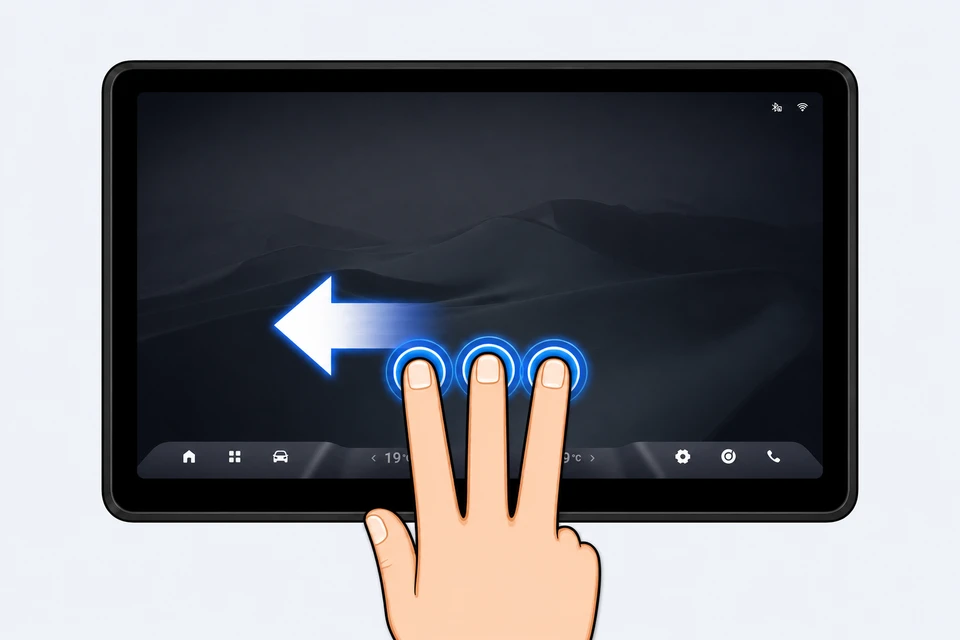
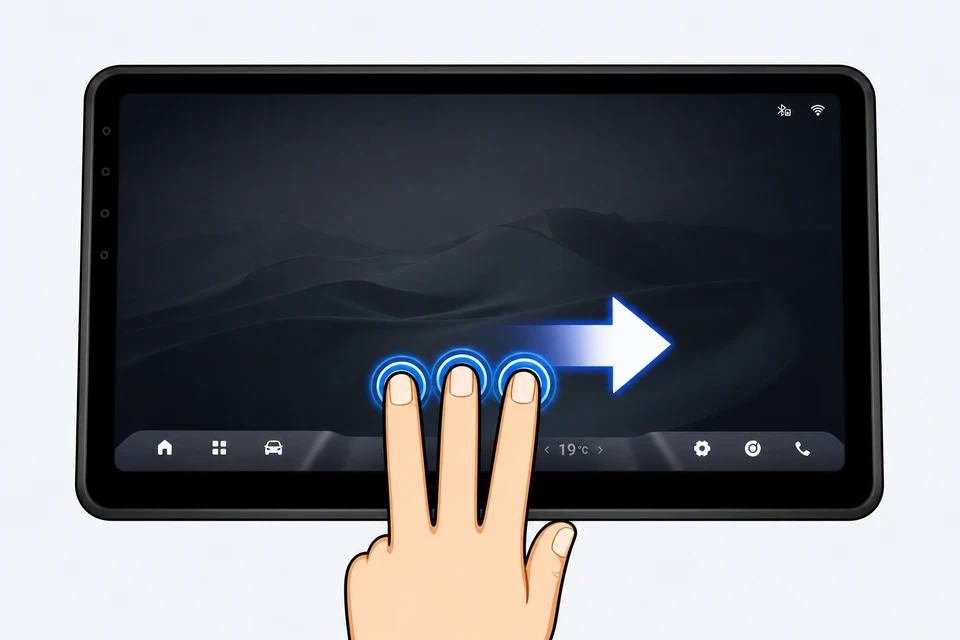
Direct link to this sectionGestures are shortcuts activated by swiping one or more fingers across the screen. They let you perform common actions without searching for a button.
Navigation gestures
Direct link to this sectionInstalled apps
Direct link to this section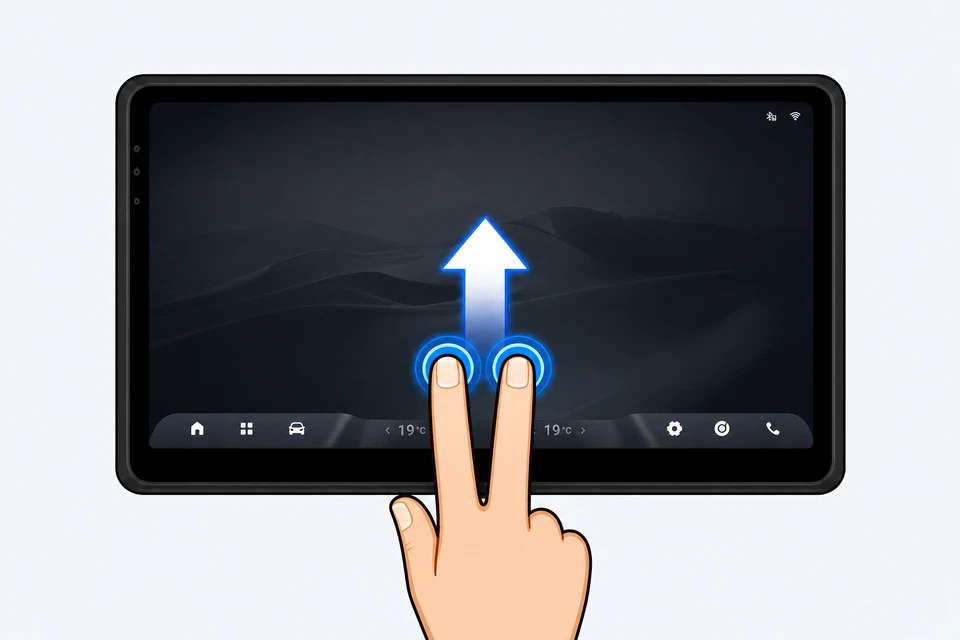
Go Back
Direct link to this section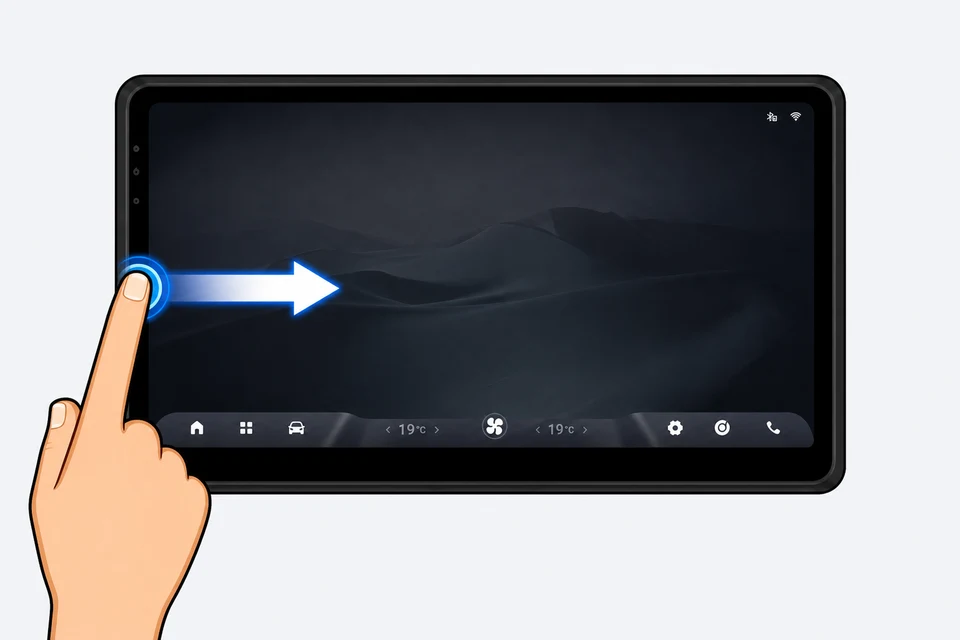
AC gestures
Direct link to this section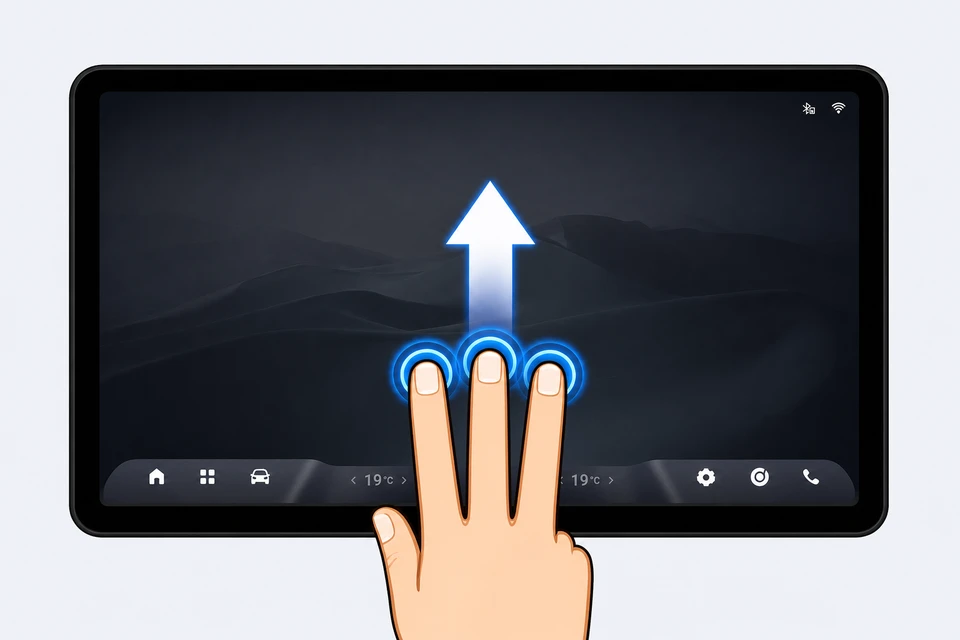
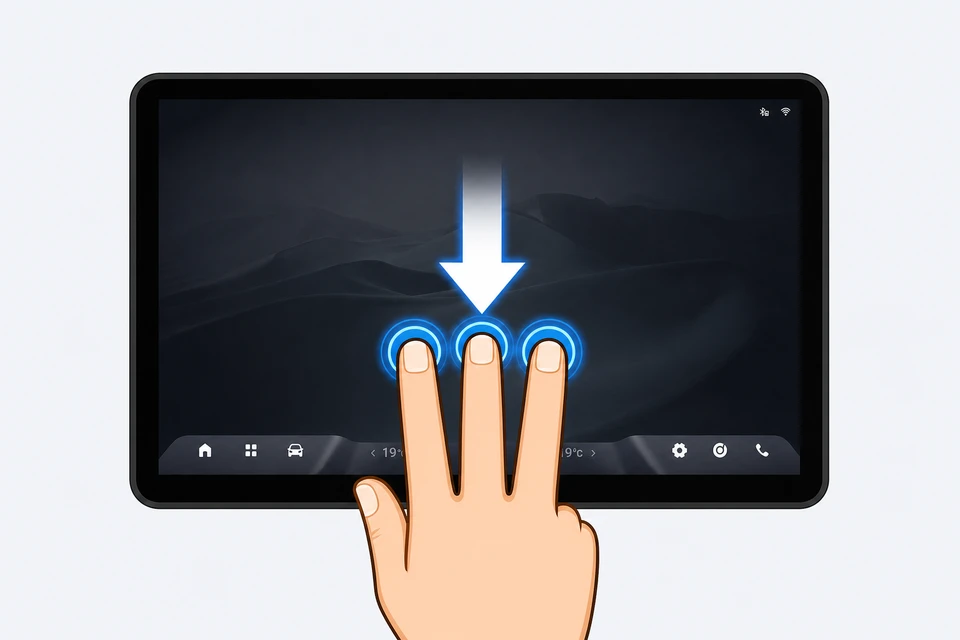
Internet
Direct link to this sectionConnect the car screen to a phone hotspot, cellular USB dongle, Wi-Fi, or another available internet source.
Important: continue only after the connection screen shows Connected.

 Important tip: The car's Wi-Fi internet connection is the same connection used by Android Auto/CarPlay. When you turn on Wi-Fi in the app, the wireless Android Auto/CarPlay connection disconnects automatically.
SoundA short XEQ setup.
Direct link to this section
 XEQ is an equalizer that lets you tune the vehicle sound to your
preference.
XEQ is an equalizer that lets you tune the vehicle sound to your
preference.
Watch the video to configure the app.
Recommended: begin with a preset, listen, and choose the one that sounds best to you.
You can also create and save your own preset.
AppsInstall one app and confirm it opens.
Direct link to this section-
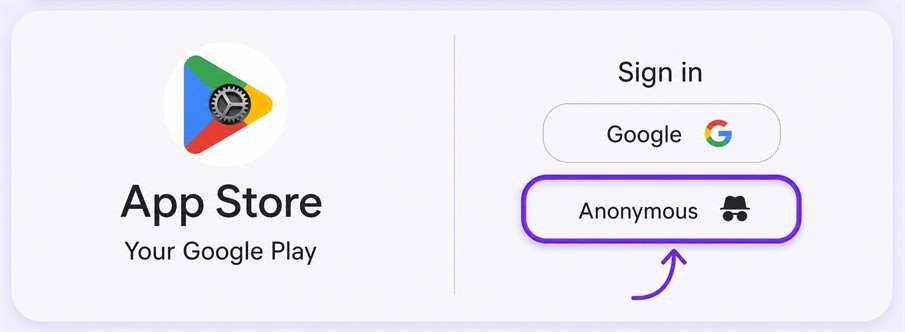
If you are asked to sign in, choose Anonymous to continue without an account.
-
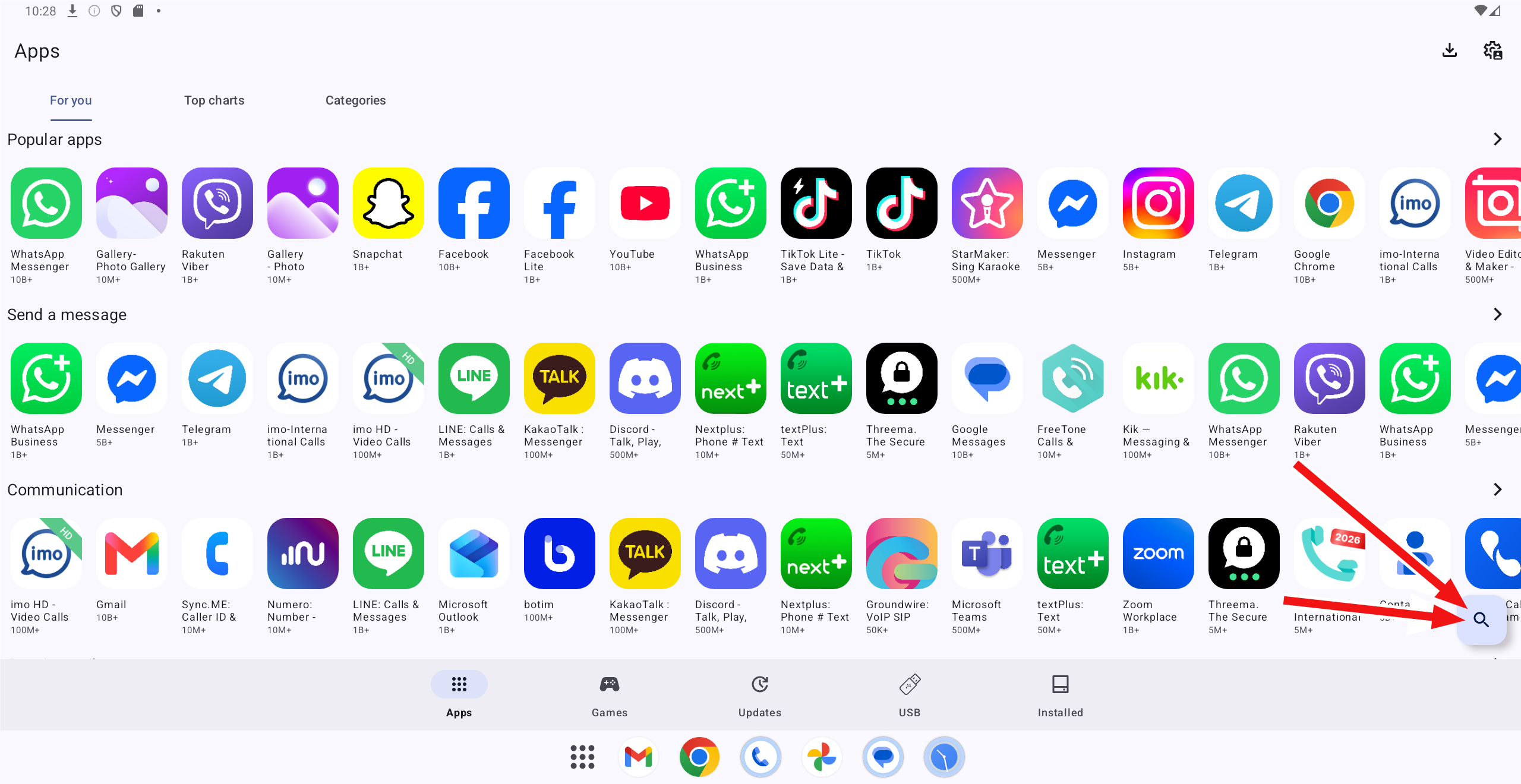
Find an app by its icon or with Search.
Install YouTube
Direct link to this sectionThis version of YouTube has no ads.
- Find and install
 Carrier Services from App Store.
 - Find and install

 YouTube from App Store.
 - Open YouTube.
- Connect a Google account — open
 microG, enter your account details, and complete verification.
Install Waze
Direct link to this sectionFind and install
 "Google" or
  "Google News" from App Store.
-
Open the app you installed, select the
 microphone, speak, and confirm that your words appear on screen.
- Find and install
 Waze, then open it.
 -
Configure Waze:
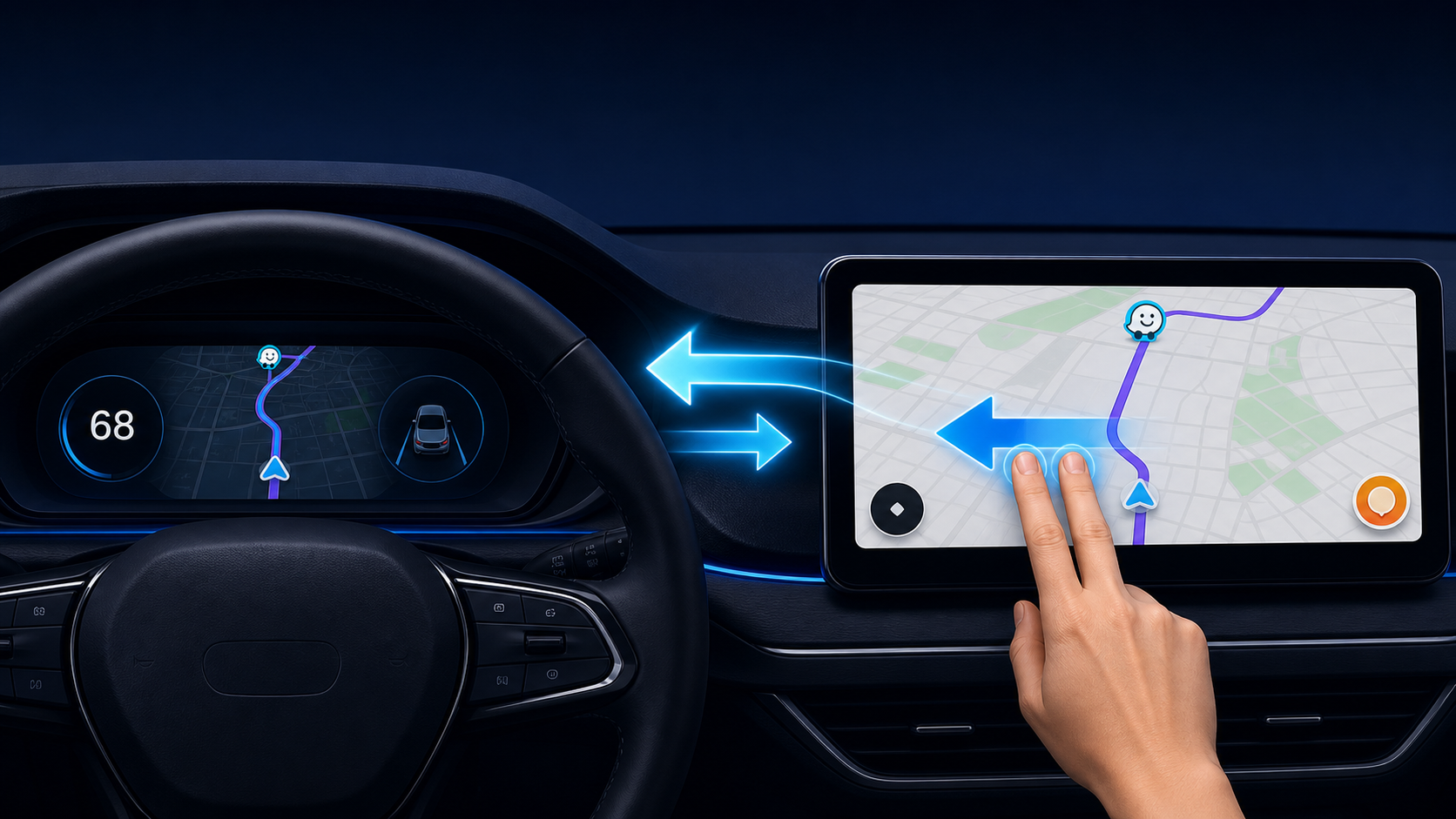
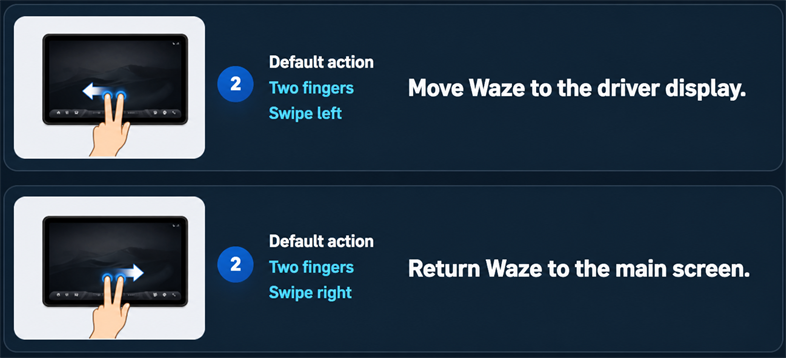
Waze on the driver display
Direct link to this sectionSwipe left with two fingers to move Waze to the driver display. Swipe right with two fingers to return it to the main screen.
Waze in the head-up display
Direct link to this sectionOpen Driver Settings → Settings and enable Waze broadcast to show navigation instructions in the head-up display.
Synchronize night mode
Direct link to this sectionIn Waze, open Settings → Map display → Dark mode and choose Same as phone settings.
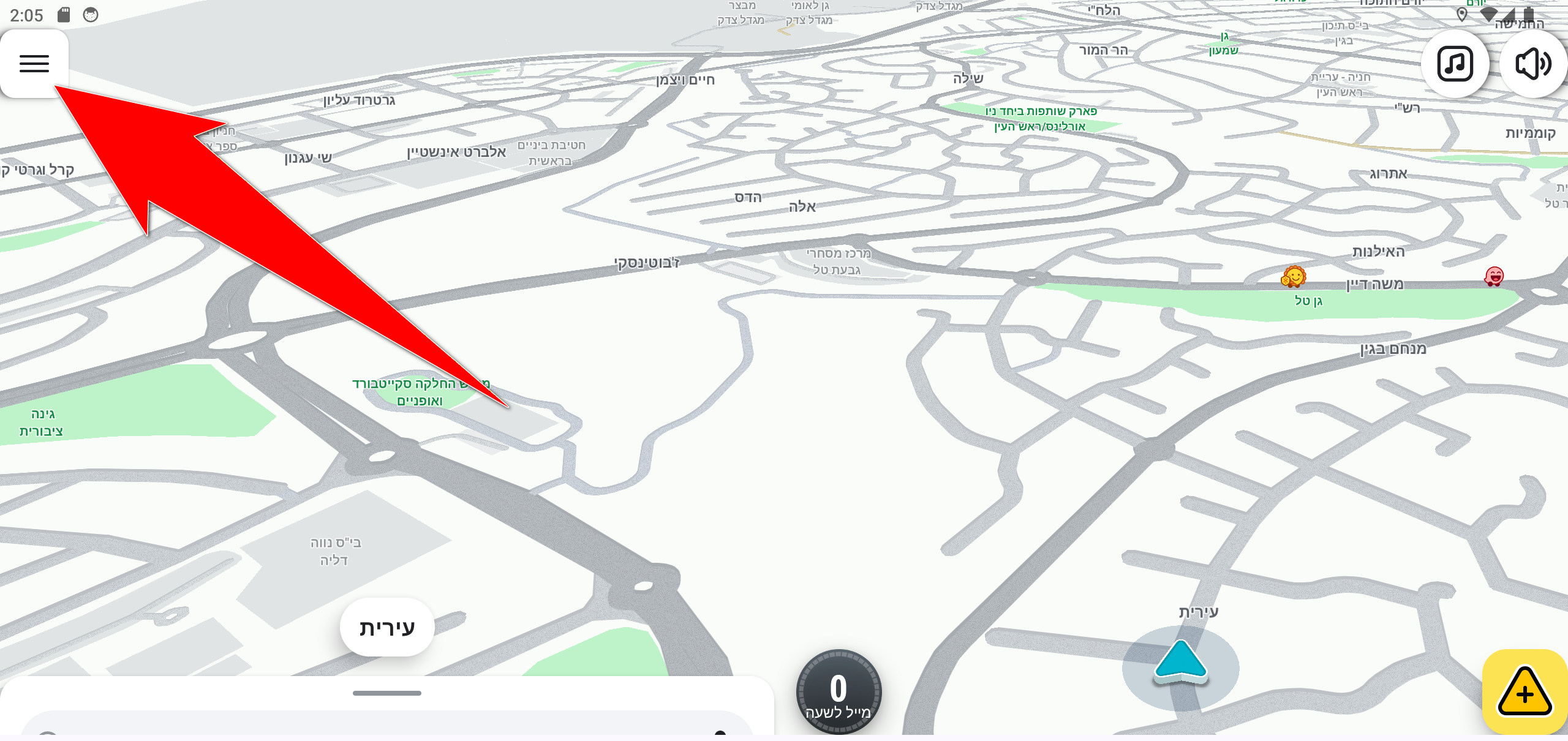
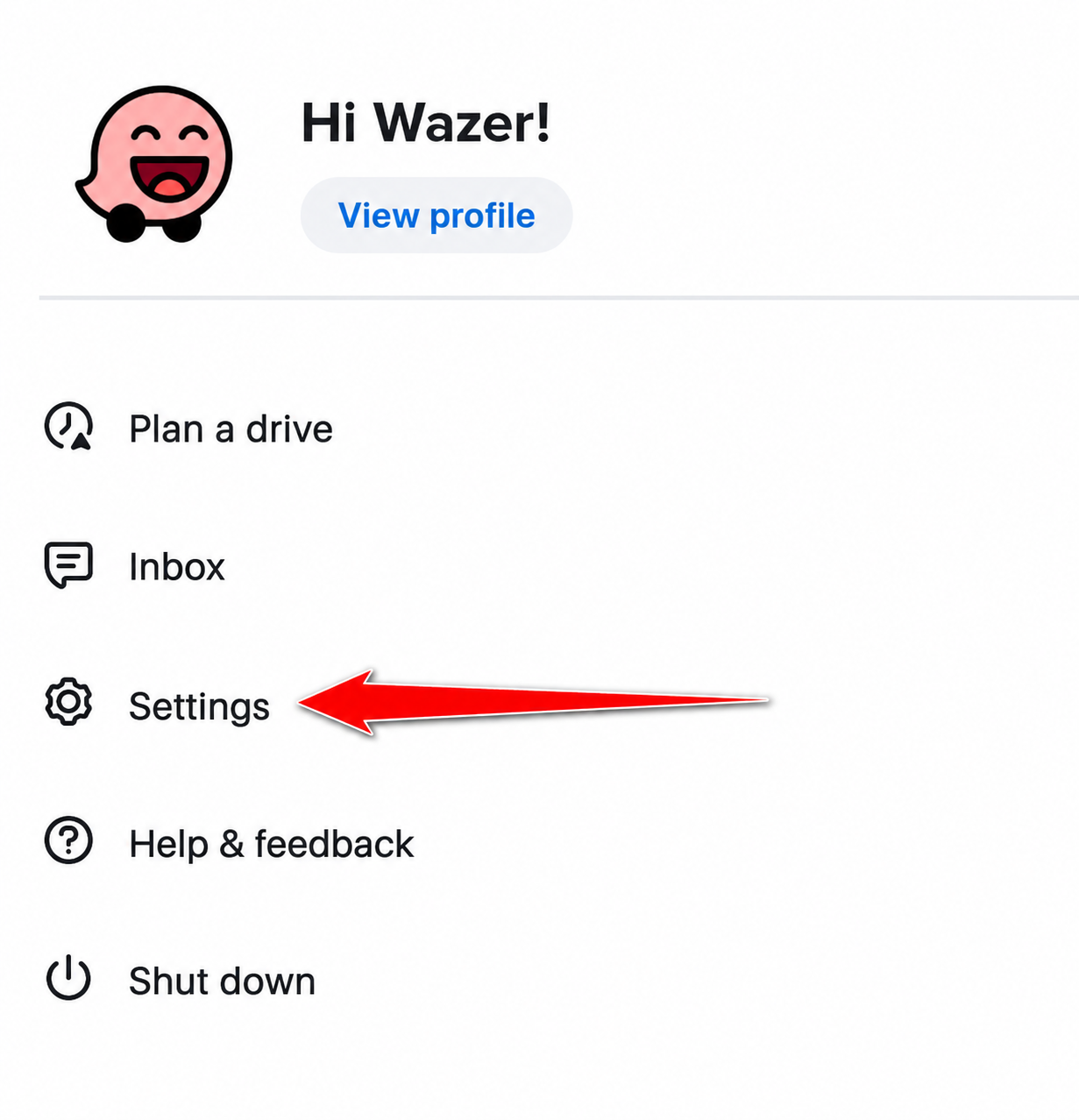
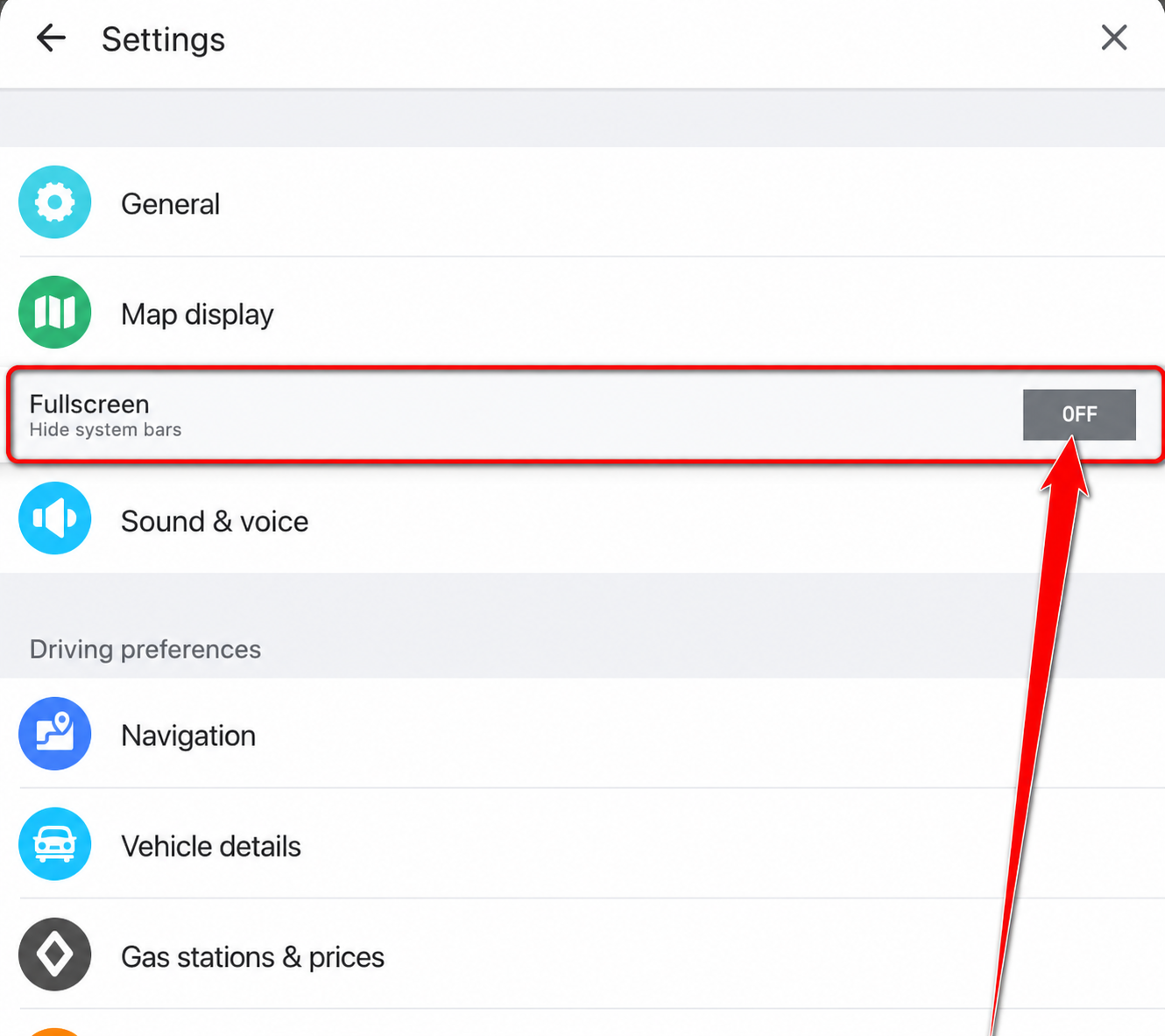
Narrow screens
Direct link to this sectionOpen the Waze menu, choose Settings, and enable Full screen.
The menu layout may vary slightly by Waze version.
Sign in to your account
Direct link to this sectionSign in with your Waze username and password. You do not need to sign in to use navigation.
 TuneIn Radio
Some Google services or apps may not work because the car-screen multimedia system is not a full Android system.
360° recording New in DSA 4.0.0.0
Your car’s cameras record automatically to a USB flash drive.
Connect a USB flash drive
Use the USB port near the driver, usually the wider port. The flash drive must use exFAT or NTFS.
Enable recording
In Driver Settings, enable the recording option.
That’s it! Recording now starts every time you start the vehicle.
Older recordings are deleted automatically when storage fills up.
Records only while the vehicle is on, without audio.
Which USB flash drive should I use?
Plug the drive into the USB port near the driver. In most vehicles this is the wider USB-A port. Use exFAT or NTFS; any capacity is supported and existing files can remain.
At an average of 70MB per minute, a 32GB drive holds approximately 7 hours and 37 minutes. Actual available recording time depends on free space and recording usage.
If you need to change the drive’s format, back up its files first: formatting erases them.
How do I watch recordings?
Watch on the vehicle’s screen while stopped. To view recordings elsewhere, use the USB drive with a computer or another device that can read it and play video. There is no phone app.
Bluetooth callsMake and receive calls through the vehicle system.
Direct link to this section- Open the Bluetooth settings on the car screen and turn Bluetooth on.
- Open Bluetooth settings on the phone and select the vehicle system.
- Confirm the pairing code on both the car screen and phone.
- Allow access to calls and contacts.
- While parked, make a test call and confirm that incoming calls also work.
Tip: You do not have to keep using Android Auto or
Apple CarPlay — DSA apps cover your needs directly on the car
screen.
Need help?
Find all 16 complete answers in the Support Hub, including car-screen, phone, app, and navigation questions.
Open Support Hub